
There are two kinds of provider. An AI provider powers the agent, WordPress Studio Code, which builds and changes your site. A hosting provider is where your site goes when you publish it.
WordPress.com is both. When you sign in with WordPress.com, you get a one-time free allowance of AI use and a place to publish. Every other provider is optional.
Open the Providers page
In the desktop app, open Settings from the account menu at the bottom of the sidebar and select Providers. You can also press ⌘, (Ctrl+, on Windows and Linux).
Two shortcuts lead to the same page. Choose Providers from the account menu, or choose Connect AI providers from the + menu in the chat box.
The page has three groups. Your defaults are at the top, then AI providers, then Hosting providers. A provider you have set up is marked Connected.
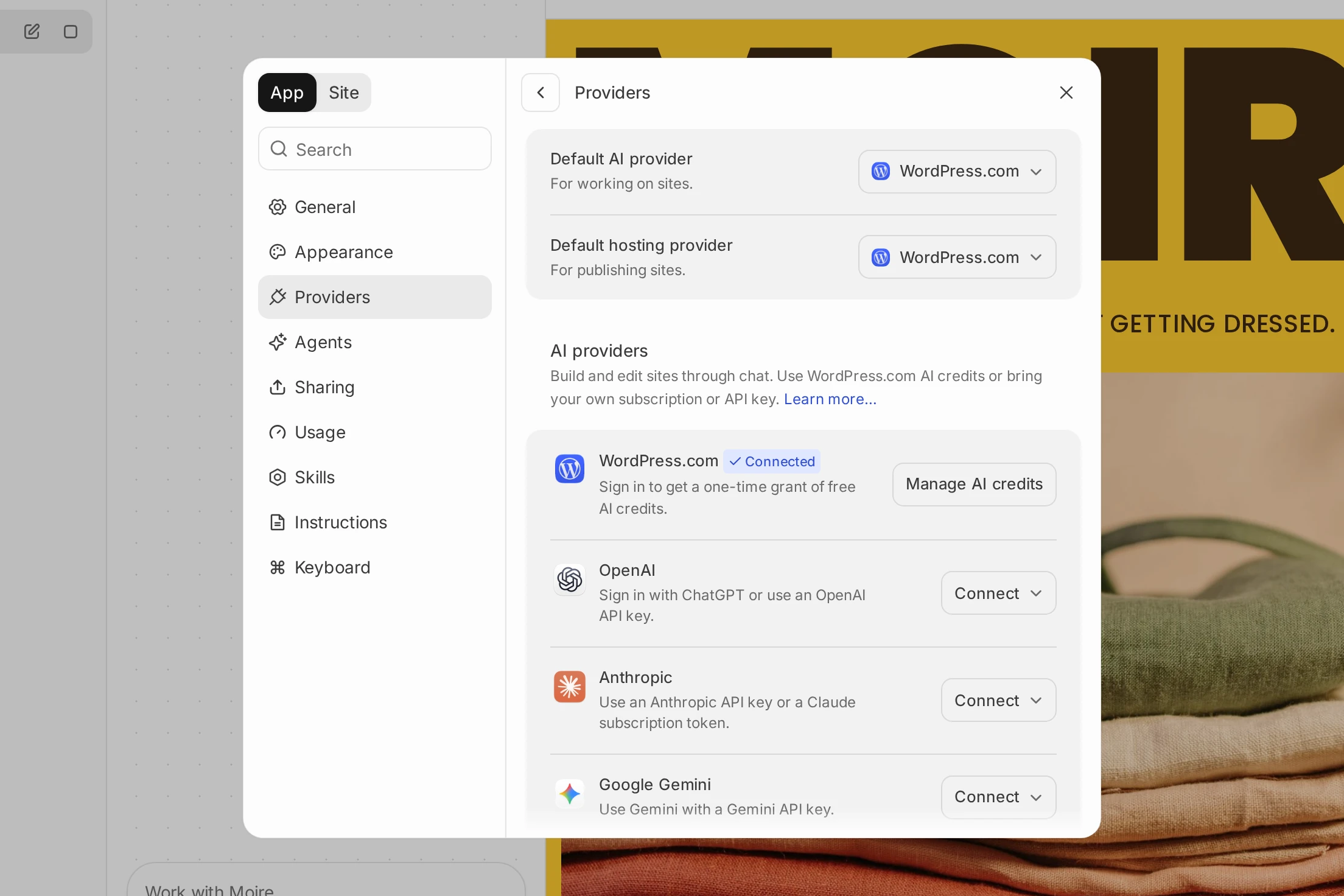
WordPress Studio UI, which you start with studio ui, has the same page. In the terminal you use commands instead. See Providers in the terminal.
AI providers
The agent needs one AI provider before it can build. Use a plan or key you already have, or start with the free allowance from WordPress.com.
| Provider | What you need | Who bills you | Models | Makes images |
|---|---|---|---|---|
| WordPress.com | A WordPress.com account | Nothing at first. You get a one-time free allowance, then you can buy AI credits | Fast, Balanced, Strong | Yes |
| OpenAI | A ChatGPT plan, or an OpenAI API key | Your ChatGPT plan, or your OpenAI account | GPT-6.1 Terra, GPT-6.1 Sol | With an API key only |
| Anthropic | A Claude subscription, or an Anthropic API key | Your Claude plan, or your Anthropic account | Sonnet 5.5, Opus 5.5 | No |
| Google Gemini | A Gemini API key | Your Google AI Studio project | Gemini 3.8 Flash, Gemini 4 Argon | Yes |
| GitHub Copilot | A GitHub account with a Copilot plan | Your Copilot plan | The ones your plan includes, from Sonnet 5.5, GPT-6.1 Terra, and Gemini 4 Argon | No |
| Meta | A Meta API key | Your Meta Model API account | Muse Spark 1.3, Muse Wonder | Yes |
An API key is a long code that lets an app use your account with an AI company. You create one on that company’s site and paste it into WordPress Studio.
Each provider has a Connect button. When there is more than one way to sign in, the button opens a menu.
WordPress.com
- Click Connect next to WordPress.com.
- Sign in with your WordPress.com account in your browser.
You don’t need an API key. A new account gets a one-time free allowance, which works with the Fast model. When it runs out you can use the AI you already have, or buy AI credits from WordPress.com. Once you’re signed in, the button changes to Manage AI credits.
WordPress.com offers three models named Fast, Balanced, and Strong. See Choosing an AI model tier in WordPress Studio Code.
OpenAI
To sign in with ChatGPT:
- Click Connect next to OpenAI and choose ChatGPT plan.
- Sign in with ChatGPT in the browser window that opens, and approve.
- Go back to WordPress Studio. If you closed the browser tab, click Try again.
Your use counts against your ChatGPT plan.
To use an API key:
- Create a key in the OpenAI Platform.
- Click Connect next to OpenAI and choose API key.
- Paste the key in OpenAI API key and click Save.
OpenAI bills your account for what you use. Only the API key can make images.
Anthropic
To use a Claude subscription, such as Pro or Max:
- Install Claude Code if you don’t have it yet.
- Run
claude setup-tokenin a terminal and sign in with your Claude account. It prints a token that starts withsk-ant-oat01-. - In WordPress Studio, click Connect next to Anthropic and choose Claude subscription.
- Paste the token in Claude subscription token and click Save.
Your use counts against your Claude plan.
To use an API key:
- Create a key in the Claude Console.
- Click Connect next to Anthropic and choose API key.
- Paste the key in Anthropic API key and click Save.
Anthropic bills your account for what you use.
Google Gemini
- Create a key in Google AI Studio.
- Click Connect next to Google Gemini.
- Paste the key in Gemini API key and click Save.
Google bills your Google AI Studio project for what you use.
GitHub Copilot
- Click Connect next to GitHub Copilot. WordPress Studio shows a sign-in code.
- Approve that code on GitHub in your browser. Use a GitHub account that has a Copilot plan.
Your use counts against your Copilot plan. You only see the models your plan includes.
Meta
- Create a key in the API keys tab of the Meta Model API dashboard.
- Click Connect next to Meta.
- Paste the key in Meta API key and click Save.
Meta bills your Meta Model API account for what you use.
Change or remove an AI provider
| Provider | What to do |
|---|---|
| OpenAI, Anthropic | Click Manage. Choose the other way to sign in, or choose Disconnect |
| Google Gemini, Meta | Click Manage. Paste a new key and click Save, or click Disconnect |
| GitHub Copilot | Click Disconnect |
| WordPress.com | Choose Log out from the account menu. You will also need to sign in again before you publish to WordPress.com |
Choose the AI for a chat
Default AI provider, at the top of the page, sets which provider a new chat uses.
You can pick a different model for one chat. Open the model menu in the chat box, which lists the models of every provider you have set up. When you use a ChatGPT, Claude, or Copilot plan, the menu names the plan and links to Manage usage.

If you switch a chat to another provider’s model, WordPress Studio starts a new chat, because the new model can’t read the old one’s conversation. It asks Start a new chat? first. Your earlier chat stays in the sidebar.
The agent can make images for your site with WordPress.com, OpenAI with an API key, Google Gemini, or Meta. It uses the chat’s provider when that one can make images, and the first of the others when it can’t. See Image generation in WordPress Studio Code.
Hosting providers
A hosting provider is where Publish sends your site.
| Provider | What you can do | What you need |
|---|---|---|
| WordPress.com | Publish to a new site, or update one you already have on WordPress.com or Pressable. You can also pull a site into WordPress Studio and share a preview | A WordPress.com account |
| Spacefast | Publish a static copy of your site. Forms, comments, and other features that need WordPress running won’t work in the copy | A Spacefast account |
WordPress.com and Pressable
Click Connect next to WordPress.com and sign in. If you’re already signed in, there is nothing more to do.
Pressable doesn’t have its own entry. Your Pressable sites show up next to your WordPress.com sites when Jetpack on the Pressable site uses the same WordPress.com account as WordPress Studio. See Compatible sites for which sites you can publish to.
Spacefast
- Click Connect next to Spacefast. The Connect to Spacefast dialog shows a sign-in code.
- Click Open Spacefast, check that the code in your browser matches, and approve.
To remove Spacefast, click Disconnect. See Publish a static copy to Spacefast for what the copy includes.
Choose where Publish goes
Default hosting provider, at the top of the page, sets where Publish goes for a site you haven’t published yet.
If you have set up one hosting provider, WordPress Studio opens that one. If you have set up more and chosen no default, it asks Where do you want to publish? To pick a different host while you’re publishing, click Choose another host.
The full steps are in WordPress Studio Sync.
Providers in the terminal
In studio code, you manage providers with commands.
| Command | What it does |
|---|---|
/connect | Sets up a provider. Choose one from the list, or name it, as in /connect anthropic. The names are wpcom, anthropic, openai, gemini, github-copilot, meta, and spacefast. Run it again for a provider you already have to change its key |
/disconnect | Removes a provider. Removing WordPress.com logs you out |
/provider | Switches the AI provider. This also changes Default AI provider |
/model | Switches the model |
/login, /logout | Signs you in to or out of WordPress.com |
A provider you set up in the terminal is also set up in the desktop app, and the other way around.
What needs a WordPress.com account
You can build with the agent without a WordPress.com account, as long as you have set up another AI provider. You still need to sign in with WordPress.com to do any of these.
- Use the free allowance, or the Fast, Balanced, and Strong models
- Share a preview
- Publish to a WordPress.com or Pressable site, or pull one into WordPress Studio
- Ask the agent to work on one of your WordPress.com sites
- Send feedback from a chat
Agent plugins are separate
A provider brings an AI into WordPress Studio. An agent plugin does the opposite. It brings WordPress Studio Code into an agent you already use, such as Claude Code, ChatGPT (Codex), Cursor, or Grok Build, and that agent keeps using its own account.
You install agent plugins on the Agents page of Settings. See MCP on WordPress Studio.